One of my favourite patterns in Claude Code lately is asking it to generate an intermediate, interactive HTML artefact instead of a Markdown file to iterate on a task. I first saw a Claude dev show it off in a tweet, then kept seeing other people get good results with it, so I started reaching for it too. It’s nothing fancy, just a small shift in how I work with the model, but a genuinely useful one.
The idea is simple: instead of going back and forth with the model in text, you have it build a small, throwaway HTML page you can actually click around in, and that page becomes how you talk back to it. I lean on it for all sorts of things now: reviewing docs, tweaking a UI theme, spinning up prototypes, and sometimes just debugging or getting my head around an unfamiliar piece of code. You’ll probably recognise a version of at least one of these in your own work.
How it works
In Claude Code, just ask for a playground, or type /playground. You get one HTML file with a few controls, a live preview, and a button. You click toward the version you like, then hit the button: it writes your choice up as a prompt, you paste it back, and Claude makes the change in your real code.
↻ repeat · each time round, the tool gets better, and so does the prompt
Interactive examples to try yourself
Here are five from my own work, spread across deliberately different kinds of jobs. They’re less a checklist to copy than a set of starting points. Open any card to poke at the live version, and read the prompt underneath to see how each one began.
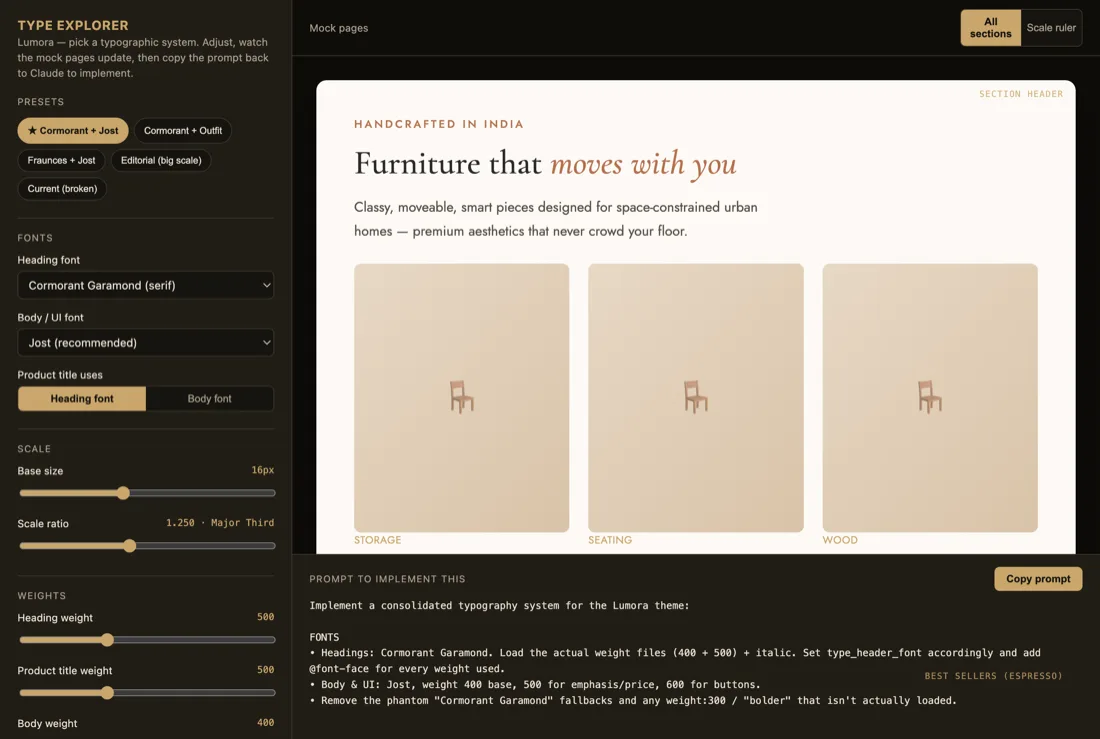
Finalising font sizes and pairings through an interactive UI
E-commercePrompt pattern“Our store’s type is all over the place: sizes, weights, pairings. Show every combination so we can make it consistent.”
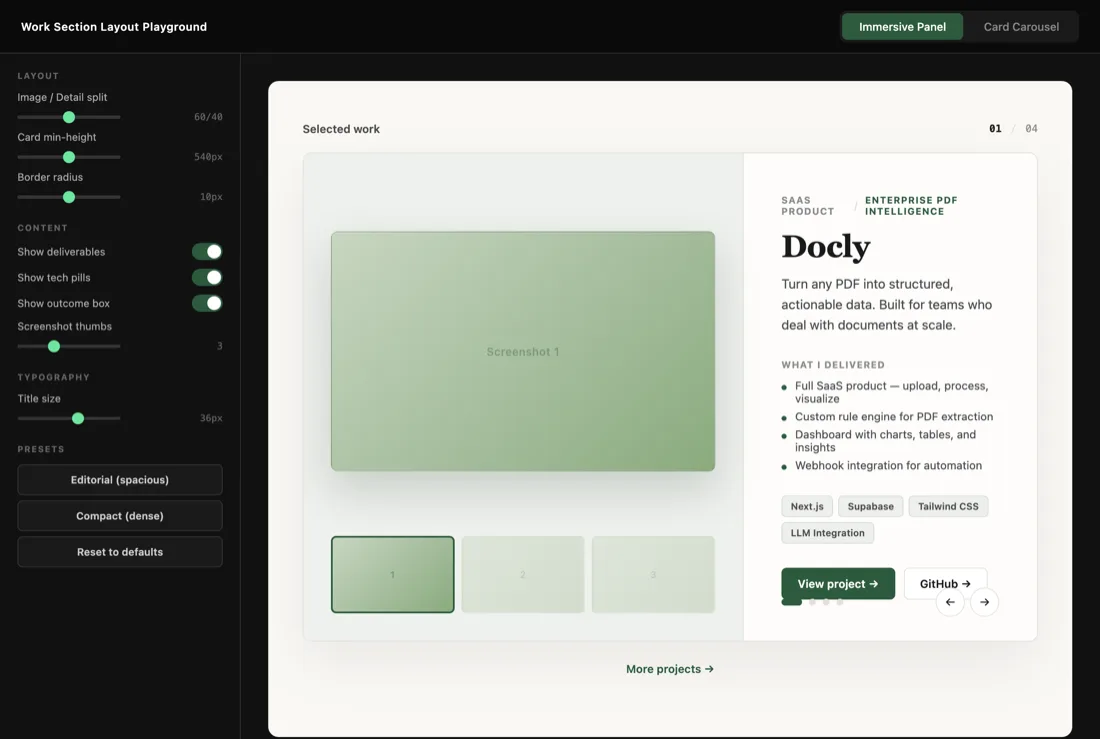
Reworking a personal site’s work section through a live layout
Personal · BlogPrompt pattern“Redo the work section: preview on the left, details on the right, one screen, bigger images, less clutter.”
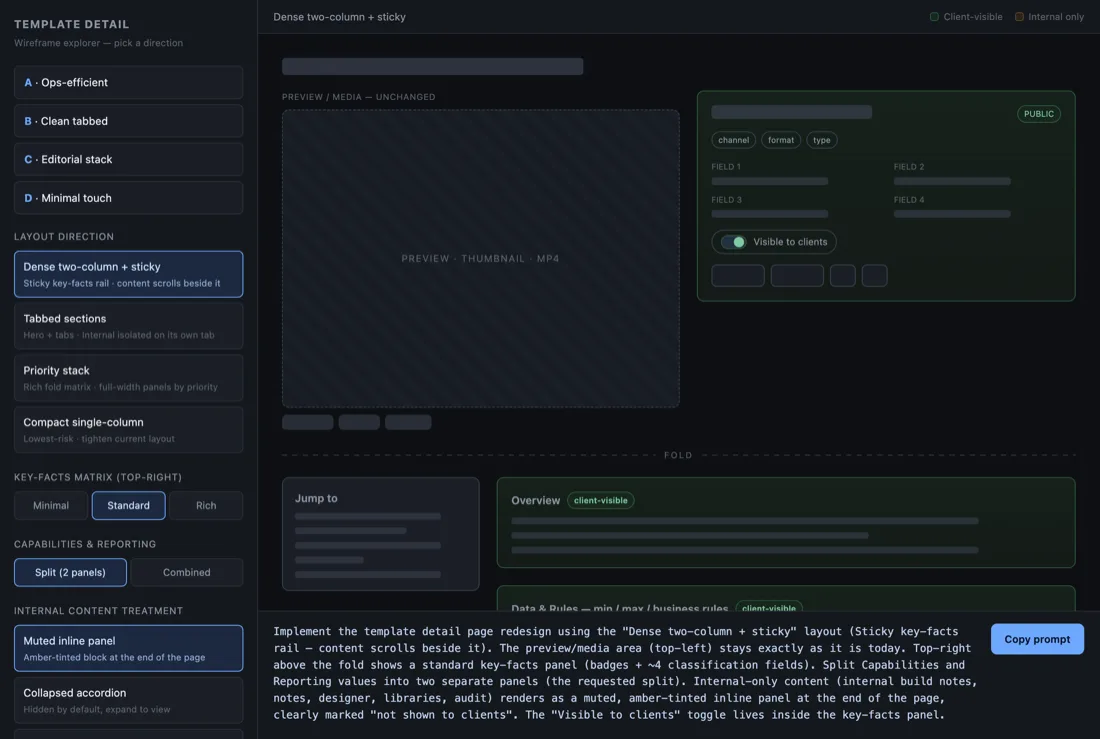
Choosing a multi-section details-page layout through clickable wireframes
Product · WireframesPrompt pattern“Give me wireframes, a few variations, that we can actually build. Make it interactive.”
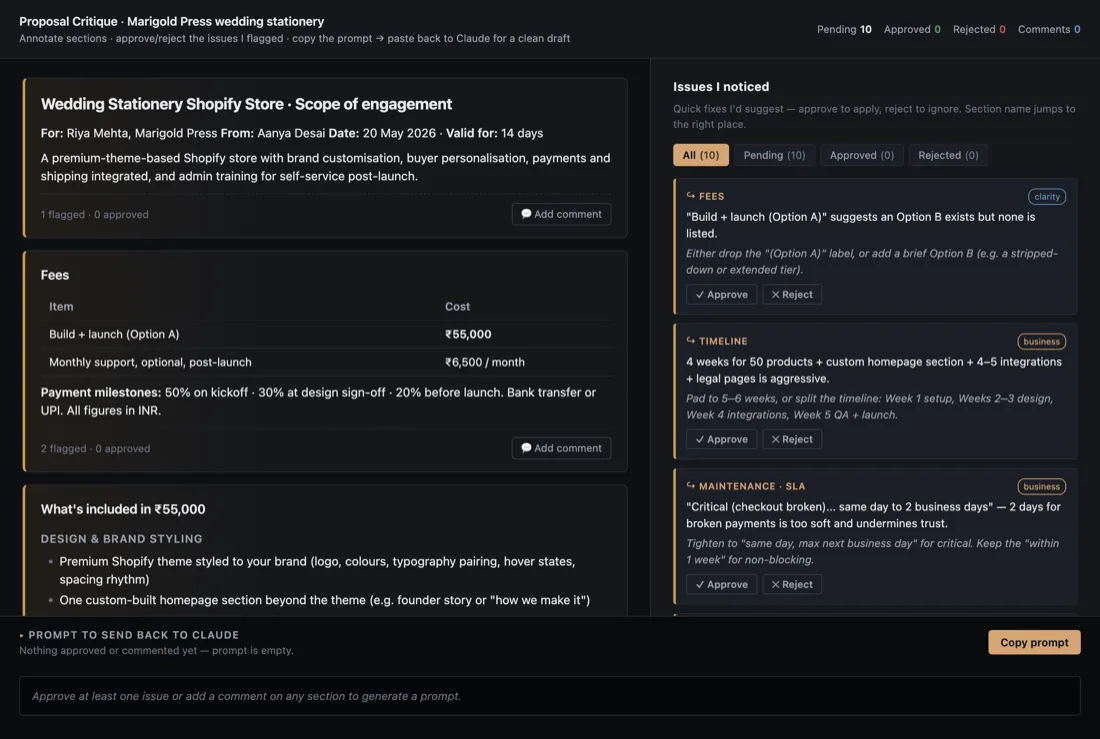
Reviewing a client proposal with inline, accept-or-reject suggestions
Docs · FreelancePrompt pattern“Review this proposal and leave inline suggestions I can skim, then apply or reject one by one.”
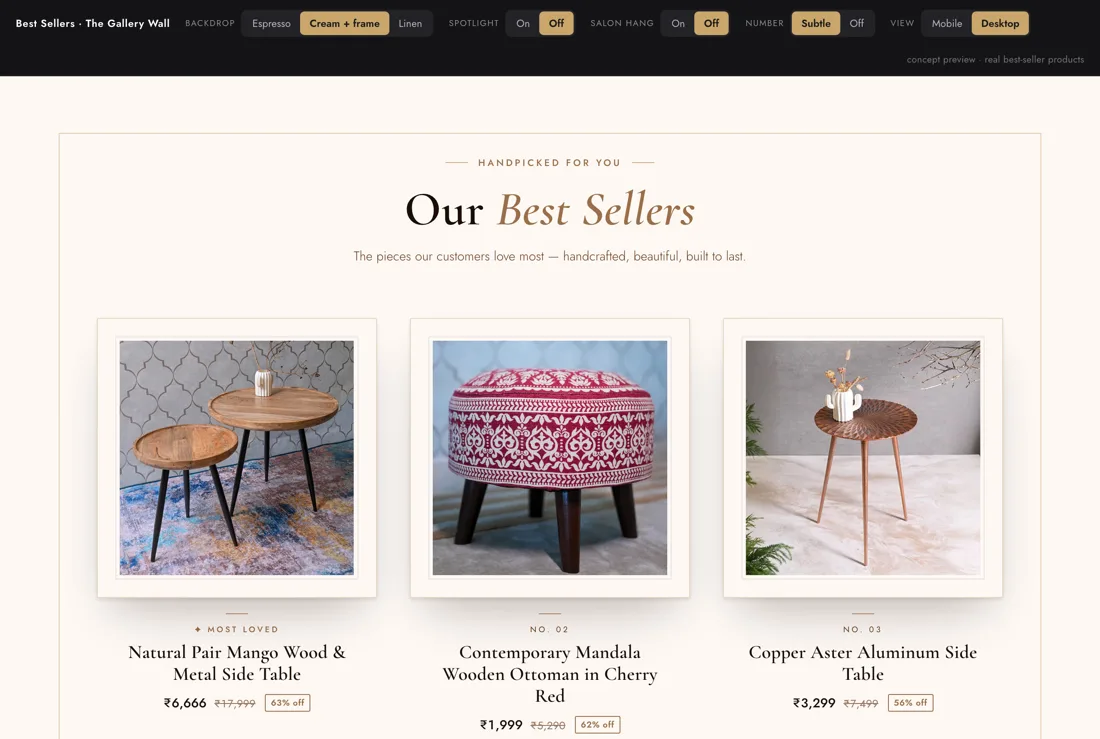
Trying a “gallery wall” concept for a store’s best-sellers
E-commercePrompt pattern“Mock up a gallery-wall layout for the best-sellers, and let me flip through backgrounds and framing to see what feels right.”
When it’s worth it
The natural hunch is to reach for this on UI work: wireframes, prototypes, anything you’d otherwise sketch. That’s where it’s easiest to picture, and it does work there. But the bigger wins tend to be elsewhere: pulling apart a complex algorithm with interactive knobs and worked examples, reviewing an important doc in a cleaner interface than a wall of Markdown, or turning a long session into an artefact someone else can click through. Either way the test is the same. It pays off when the thing is easier to see than to say, and gets in the way when the answer is already obvious.
Use it when
- The choice is visual, or has many options.
- The AI gave you a lot of output to dig through.
- A document should be a tool, like a list you want to filter.
Skip it when
- The answer is obvious.
- It’s a one-line change.
- There’s nothing to compare.
Try it yourself
If you have Claude Code, you already have everything you need. The only real skill is pointing it at the right decision.
- Ask for a playground. Type
/playground, or just say “make me a playground for X.” - Say what you’re deciding, not what you’re building. “A playground to choose a type scale” works better than “a typography playground.” The decision is what tells it which knobs to add.
- Click, then copy. Turn the knobs, hit the button, paste the prompt back. Resist editing the result by hand; the prompt is what tells it what you meant.
Here’s the prompt to get started:
/playground — build me a tool to decide <the choice>.
Controls for <the things I want to try>, a live preview, and a button
that copies a prompt I can paste back to apply my pick. Save it to ./playground/.
Once you start using this, you’ll keep finding more places it fits. The next time a task would mean wading through another wordy Markdown dump, you’ll have a cleaner, friendlier interface to work through instead.
More ideas and inspiration
- The unreasonable effectiveness of HTML — Anthropic’s write-up on the pattern.
- Video walkthrough — seeing it in action.
- The tweet that put me onto it — where I first saw it.